


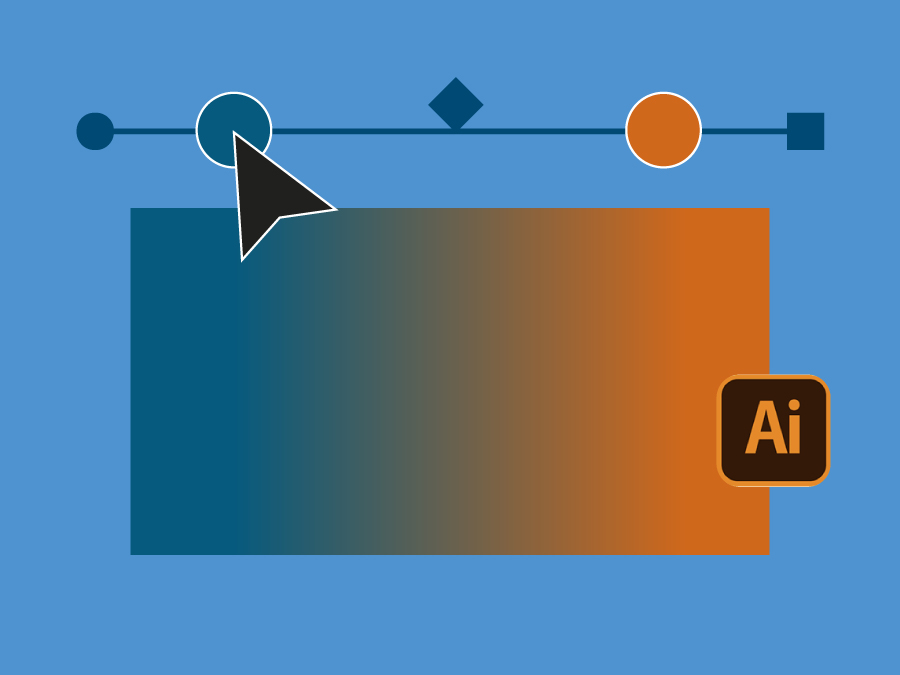
Gradients are a core part of vector design. Used well, they add depth, movement and contrast. Used poorly, they can look flat, banded or unnatural. Adobe Illustrator offers a wide range of gradient controls, and understanding how they work gives you far more confidence when building artwork for print or digital use.
This tutorial focuses on the Gradient tool and Properties panel, covering linear, radial and freeform gradients, classic versus perceptual blending, gradients on strokes and text, compound paths, and ways to reduce banding in large gradient areas.
Our video guide to gradients in Illustrator
If you’d prefer to follow along on screen, the video below walks through every gradient option available in Illustrator’s Gradient tool, with practical examples and explanations of how each setting affects the final result.

What are gradients used for in Illustrator?
Gradients allow you to blend two or more colours smoothly across an object. Designers use them to:
-
Add depth and form to flat shapes
-
Create light, shadow and volume
-
Suggest movement or direction
-
Build more natural colour transitions
-
Add visual interest without relying on imagery
Because Illustrator works with vectors, gradients remain sharp at any size, making them suitable for everything from icons and logos to large-format print.
What types of gradients are available in Illustrator?
Illustrator includes three main gradient types within the Gradient tool:
-
Linear gradients – colours blend along a straight line
-
Radial gradients – colours radiate outward from a central point
-
Freeform gradients – colours are placed as individual points or lines and blended organically
Each type behaves differently and suits different design needs.
How do linear gradients work in Illustrator?
A linear gradient blends colours from one point to another along a straight axis. Once applied, you can:
-
Drag the gradient line to reposition the blend
-
Rotate the gradient direction
-
Shorten or extend the transition
-
Add or remove colour stops
-
Adjust how tightly colours blend together
Linear gradients are often used for panels, backgrounds, buttons and subtle shading effects.
How do radial gradients work?
Radial gradients blend colours outward from a centre point. Illustrator allows you to:
-
Move the centre of the gradient freely
-
Stretch or compress the gradient shape
-
Flip colour positions
-
Adjust how quickly colours fade
Radial gradients are commonly used for highlights, shadows and rounded forms.
What are freeform gradients and when should you use them?
Freeform gradients give you the most control. Instead of a single axis, you place colour points or lines directly onto an object. Each point influences the surrounding area, creating more organic blends.
You can:
-
Add or remove colour points
-
Switch between point and line modes
-
Adjust the influence radius of each colour
-
Return later and edit existing freeform gradients
Freeform gradients are useful for abstract artwork, soft colour transitions and illustrative effects that would be difficult to achieve with linear or radial gradients alone.
What’s the difference between classic and perceptual gradients?
Illustrator offers two gradient blending methods:
-
Classic – blends colours mathematically
-
Perceptual – blends colours based on how the human eye perceives transitions
Both use the same colour stops and spacing, but the visual result can differ. If a gradient looks harsh or uneven, switching to perceptual blending often produces a smoother, more natural result. It’s always worth testing both.
Can you apply gradients to text in Illustrator?
Yes. Gradients can be applied directly to live text. When you do this, the gradient stretches across the full width of the text object rather than restarting on each letter.
You can then use the Gradient tool to adjust direction, scale and colour placement just as you would with shapes. This is useful for headlines, display typography and decorative text elements.
How do gradients behave on strokes and paths?
When a gradient is applied to a stroke, Illustrator gives you three options:
-
Gradient along the stroke
-
Gradient across the stroke
-
Gradient applied within the stroke
Each option changes how colours flow along or across the path. For curved or angled lines, choosing the correct stroke gradient setting can dramatically affect the final appearance.
How can gradients be used to create shadows?
Gradients are a simple way to create soft shadows without raster effects. By combining a radial gradient with transparency settings such as Multiply, you can simulate realistic shadows that adapt to coloured backgrounds.
This approach keeps artwork fully vector-based, which is especially helpful for print projects where clarity and scalability matter.
How do compound paths affect gradients?
When you apply a gradient to multiple objects individually, each object gets its own gradient. If you want a single gradient to flow smoothly across several shapes, you can combine them into a compound path.
Once grouped as a compound path, the gradient treats all objects as one continuous shape, allowing colour transitions to flow across them seamlessly.
What is dithering and why does it matter for print?
Dithering adds a subtle texture to gradients to help prevent visible colour banding, especially in large gradient areas such as covers or backgrounds.
In Illustrator, enabling Dither can reduce banding without visibly altering the design. For very large gradients, some designers also add a small amount of noise in Photoshop to introduce extra texture before printing.
For more guidance on preparing gradients and colour for print, see our Supplying Artwork for Print guide.
Key takeaways
Illustrator’s Gradient tool offers far more control than many designers realise. By understanding how each gradient type behaves, how blending methods affect colour transitions, and how gradients interact with strokes, text and compound paths, you can create smoother, more reliable results.
Taking a little extra care with gradients also helps avoid print issues such as banding, uneven blends or unexpected colour shifts.
You can view our ever growing library of Adobe Tutorials here.


 English
  French
  Spanish
  German
  Italian
  Dutch
Dutch  Polish
  Romanian
  Bulgarian
  Danish
  Turkish
  Portuguese
  English