

Adding a drop shadow in Adobe Photoshop is one of the quickest ways to give your text or graphics a sense of depth. Used well, it helps your design sit naturally within its background rather than appearing flat or superimposed.
The video below shows both a simple method and a more advanced way to handle textured surfaces.
Watch the tutorial

Start with a basic drop shadow
This is the quickest way to add depth to your design. Photoshop handles most of the work for you, and you can refine the result in a few steps.
- Select your layer in the Layers panel
- Click the FX icon and choose “Drop Shadow”
- Set blend mode to Multiply for a more natural result
- Adjust opacity to control how strong the shadow appears
- Set the angle to match your light source
- Increase distance to move the shadow away from the object
- Adjust size to control softness. Lower values give a sharper edge
For simple layouts and clean backgrounds, this method is usually enough.
When a flat shadow is not enough
Standard drop shadows do not respond to texture or uneven surfaces. If your design sits on something like corrugated metal or patterned material, you will need more control.
- Duplicate your text or object layer
- Fill the duplicate with black to create your shadow
- Rasterise the layer so it becomes editable
- Drag the shadow layer beneath the original artwork
At this stage, you are no longer relying on a preset effect. You can shape the shadow as needed.
Control blur where it matters
A realistic shadow is not evenly blurred. It changes depending on how close the object is to the surface. Field Blur lets you control this precisely.
- Go to Filter, then Blur Gallery, and choose Field Blur
- Click to add blur points across the shadow
- Set lower blur values where the object is close to the surface
- Increase blur in areas where the surface drops away
- Move points to follow the structure of the background
Take your time here. This step does most of the work in making the shadow feel believable.
Refine with a mask
Once the blur is set, you can fine tune the shadow by reducing it in specific areas. This helps it sit more naturally in the scene.
- Add a layer mask to the shadow layer
- Select a soft black brush
- Lower the brush opacity to around 20 to 30 percent
- Gently paint over areas where the shadow should fade
- Build up the effect gradually rather than removing too much at once
Keep checking against your original artwork to make sure the shadow feels consistent.
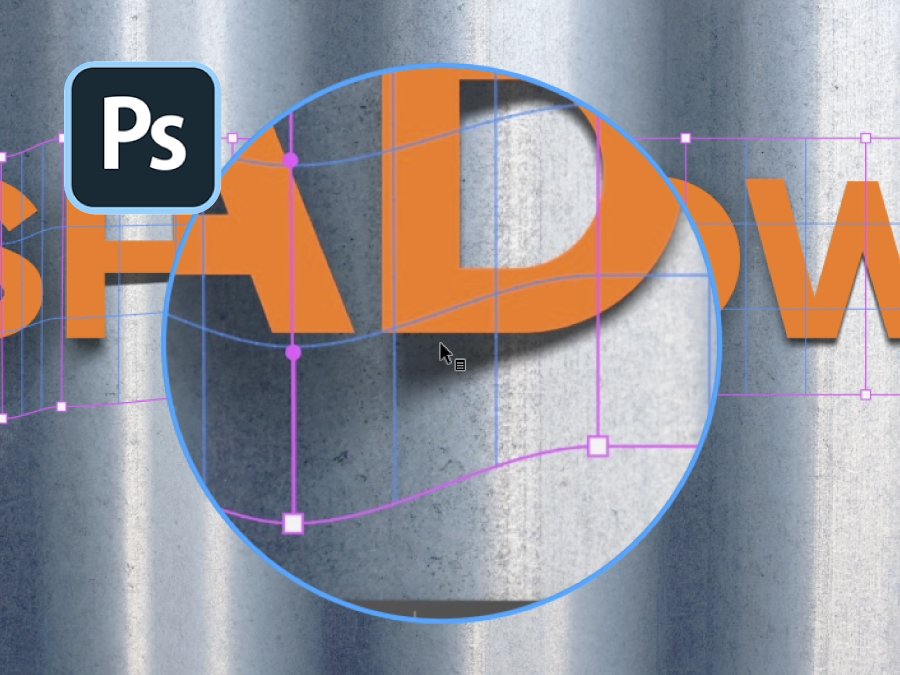
Shape the shadow to the surface
Even with blur and masking, the shadow may still look too uniform. Warping allows you to match the contours of the background.
- Select the shadow layer
- Go to Edit, then Transform, and choose Warp
- Add extra grid lines for more control
- Drag sections of the mesh to follow the shape of the surface
- Focus on subtle adjustments rather than large movements
This step helps the shadow sit properly on uneven or curved backgrounds.
Choosing the right approach
Not every project needs this level of detail. The key is knowing when to keep things simple and when to take more control.
- Use the standard drop shadow for clean, flat backgrounds
- Use the manual method for textured or uneven surfaces
- Combine both approaches if needed for more complex designs
Choosing the right method will save time and improve the final result.
Practical takeaway
Think of your shadow as part of the environment, not just an effect. Once you start shaping it to match the surface and light, your designs will feel more natural within the space.

 English